
Vehicle Controls in Infotainment Systems
Putting vehicle functions on a display can make complex settings easier to explain, but it also turns screen design and software reliability into part of the control system. The central question is not whether a car has a touchscreen; it is whether common actions remain quick, clear and recoverable while driving.
What moves into the infotainment system
Manufacturers can expose a wide range of functions through the center display:
- climate and defogging;
- seat heating, ventilation, massage and position;
- charging limits, schedules and battery preconditioning;
- drive modes, steering effort and suspension settings;
- regenerative-braking preferences;
- mirrors, lights, locks and access settings;
- driver-assistance configuration; and
- user profiles and personalization.
These functions are not necessarily executed by the screen computer. In an Android Automotive architecture, for example, the Vehicle Hardware Abstraction Layer represents vehicle functions as readable or writable properties. Other electronic control units perform the underlying work. Android Open Source Project: Vehicle Hardware Abstraction Layer
A screen control therefore starts a chain: the interface requests a change, a vehicle service validates and forwards it, another controller acts, and the vehicle reports a result. A good interface distinguishes the driver’s request from the confirmed state and explains why a function is unavailable instead of silently ignoring the input.
Controls are not the same as settings
A control changes something the driver may need now, such as temperature, fan speed or demisting. A setting configures longer-term behavior, such as the default charge limit or an automatic-lock preference. Moving setup choices into menus can reduce dashboard clutter. Burying frequent driving controls several levels deep creates repeated visual and cognitive work.
The useful question is frequency and urgency:
- Can the driver find the function without reading a long menu?
- Is its current state visible?
- Can it be adjusted by touch, a physical control or voice?
- Does the same action behave consistently in every screen context?
- Is there a direct path for time-sensitive functions?
Physical controls provide position and movement that can be learned by touch. Screen controls can change with context, display more explanation and combine several related settings. The strongest designs assign each method to the tasks it handles well and provide more than one practical path for frequent functions.
Driver attention and identification
UN Regulation No. 121 specifies requirements for the location, identification, colour and illumination of designated controls, tell-tales and indicators. Its stated purpose includes reducing hazards caused by diverting attention or selecting the wrong control. The regulation does not require every vehicle function to have a dedicated button. UNECE: UN Regulation No. 121 on controls and tell-tales
NHTSA’s voluntary visual-manual guidelines recommend designing suitable in-vehicle tasks around individual off-road glances of no more than two seconds and no more than 12 seconds cumulatively. They also recommend disabling unsuitable visual-manual tasks while the vehicle is moving. Those criteria are a design and test framework, not permission for a driver to look away for two seconds in every situation. NHTSA: Visual-Manual Driver Distraction Guidelines
Euro NCAP’s 2026 protocols add an assessment of general vehicle controls. The organization says its human-machine-interface evaluation considers placement, clarity, ease of use and physical controls for commonly used functions. This is a consumer-rating method rather than type-approval law, but it gives buyers another way to compare control design. Euro NCAP: Safe Driving protocols and vehicle-control testing
Drive modes and dynamic settings
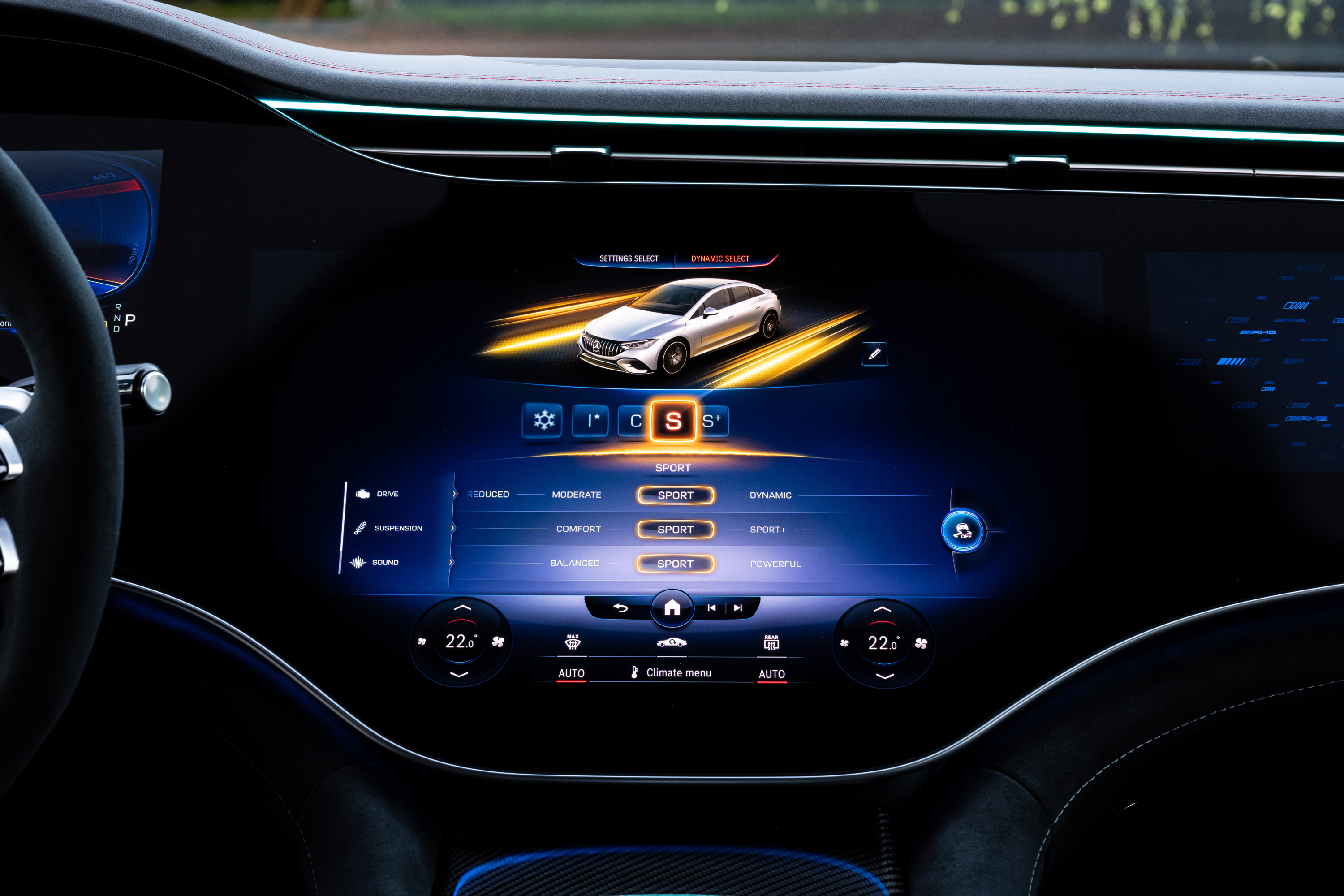
A configurable Drive Modes page may coordinate accelerator response, steering weight, damping, ride height, stability-control thresholds, synthetic sound and climate behavior. The exact bundle is model-specific. A label such as Sport, Eco or Individual does not establish which hardware changes or whether maximum power is continuously available.
Regenerative braking may be controlled by a screen, steering-wheel paddles or an automatic mode linked to navigation and traffic. EVKX covers the physical distinctions in Regenerative Braking. Climate functions and their energy effects are covered in Heating, Ventilation and Air Conditioning.
Failure, startup and recovery
Controls that depend on a display must be evaluated during more than a polished showroom demonstration. Check what happens:
- during the first seconds after a cold start;
- while the reversing camera or another full-screen view is active;
- after the system restarts;
- when wearing gloves or driving on a rough road;
- in direct sunlight and at night;
- if mobile data is unavailable; and
- when a requested function is temporarily restricted.
Hazard warnings, mandated tell-tales and other safety-related functions may use separate hardware or controllers, but the exact fallback design varies by vehicle. Do not assume that every icon shown on a center display remains available after that display fails. The owner’s manual should identify emergency operations and restart procedures.
Software updates can change the controls
An over-the-air update can reorganize menus, change default behavior or add a function without changing the physical cabin. That can improve a poor interface, but it also means a familiar control path may change during ownership.
UN Regulation No. 156 requires a software-update management process and includes provisions for update integrity, user information and recovery or a safe state after an interrupted update. It does not guarantee that an owner will prefer every interface change. UNECE: UN Regulation No. 156 on software updates
Read release notes before a major update, photograph important custom settings and check whether the vehicle allows installation to be scheduled. After updating, verify charging schedules, driver-assistance preferences and any setting whose unexpected change would matter.
What to test before buying
Without coaching from the salesperson, try to:
- adjust temperature and fan speed;
- activate front and rear defogging;
- change audio volume and mute it;
- select a drive mode;
- set a charging limit and schedule;
- find mirror and exterior-light settings;
- disable one optional driver-assistance alert; and
- return to the map or home view.
Repeat the frequent tasks while keeping your eyes forward as much as possible. Then ask another regular driver to try them. A large display can present complex vehicle systems clearly; it should not make a basic action depend on memory, patience or perfect software.
For a broader comparison of tactile input, see Buttons and Physical Controls.